Actionbound Help
Find step-by-step guides and answers to your questions about Actionbound.
With the survey element, you create interactive and entertaining experiences for players and can determine individual opinions. As the creator of a Bound, you define the answer options in the Bound Creator and decide whether players can select one or more answers from the survey.
Content
How to
- Open your Bound in the Bound Creator.
- Add a new survey item by clicking on the plus and selecting the survey from the right-hand menu.
Ask a question
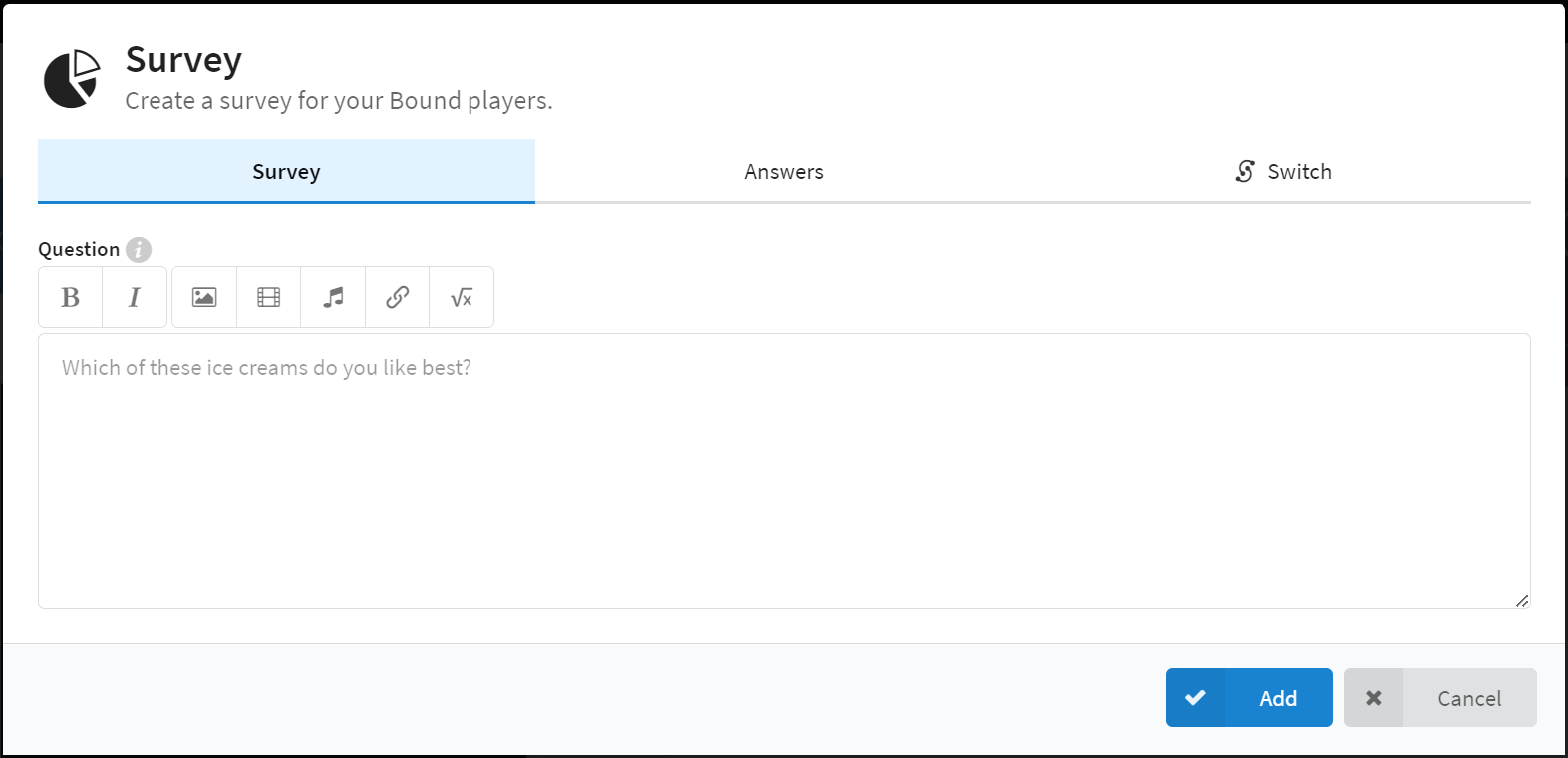
A new window opens with a text field for the question. Here you can enter your question and add media if necessary.
Add answers to the survey
To add answers to the survey, select Answers. To enter an answer choice, click on the grey Add button. By clicking on the green tick the Enter key or again on Add, the answer will be saved. Shift + Enter adds the current answer choice and directly opens a new answer field.
The answers appear in the Bound in the order you specified in the Bound Creator. Use the arrows to the right of the answer to change its position in the Bound. To change an answer, click on the pencil symbol and adjust it. Use the trash symbol to delete the answer.
Media as a survey response option

Instead of text, you can also add media as an answer option. To do this, select the media upload button to the right of the text field of the answer. Select your media from the media library and save your change.
Multiple choice
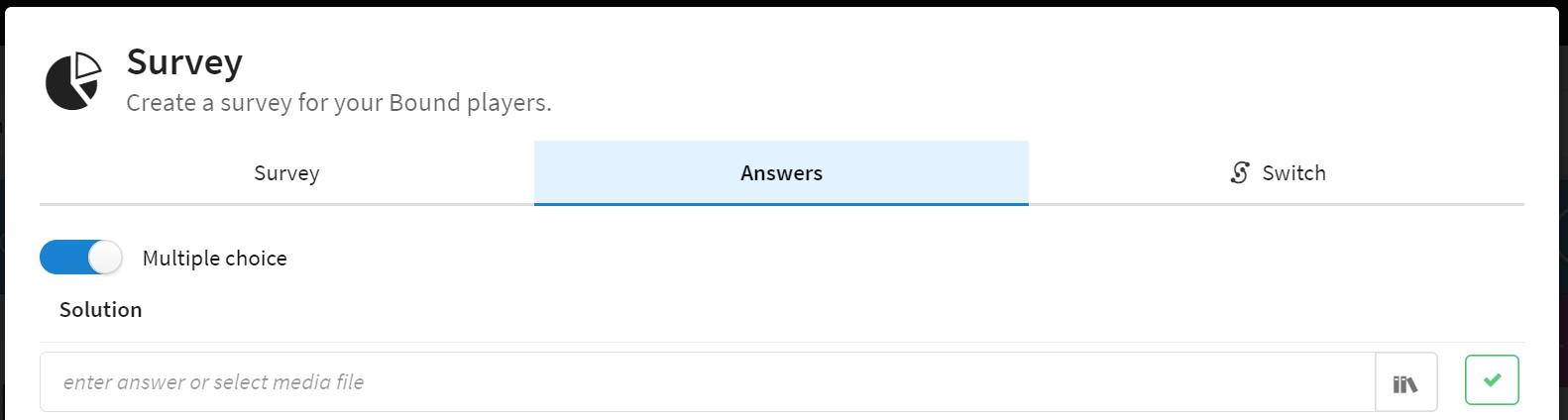
You want to allow players to select more than one answer? To do this, switch on the Multiple Selection function. It is activated when the button is coloured blue.
Example of use
You can use the survey element classically as a survey tool in your Bound for different areas and purposes:
- Find out about the personal opinions and wishes of the players.
- Gain insight into opinions and attitudes on certain topics or problems
- Test players' existing knowledge or skills
- Generate feedback on lessons, courses, teachers or events
The survey element can also be used to customise the Bound using the Switches-function.
- Let the players decide in a survey whether they need help.
- Let the players choose routes, small groups or topics themselves in a survey or allow them to learn in stations
Start your Adventure today
Create mobile adventures and interactive guides for smartphones and tablets. Take people on real-world treasure hunts and guided walks.
Start your free trialSite map
- App Store (iOS)
- Play Store (Android)